What is a digital footprint check?
A digital footprint check is the process of identifying and reviewing the data about you that exists online, both publicly accessible and tied to your accounts. It typically includes obvious sources like social media profiles, websites you’ve ordered from online, or public records like your LinkedIn profile.
It also includes less visible sources, like accounts involved in data breaches, personal information leaked from defunct or discontinued websites, inactive accounts, and third-party services with access to your information.
Is leaving a large digital footprint dangerous?
Having a large digital footprint can be dangerous because it increases your exposure to online threats. The more information that’s publicly accessible through your accounts, the easier it is for bad actors to piece together details about you and exploit them.
So, what are the consequences of a digital footprint? That exposure can lead to a range of issues, from phishing and online scams to doxing and internet fraud. For example, an exposed email address can open the door to spam or targeted attacks (see what someone can do with your email address). The same applies to phone numbers, which can be used for scams, SIM swapping, or impersonation (see what someone can do with your phone number).
Attackers can use a combination of leaked credentials, old online accounts, and publicly visible information to carry out fraud or gain unauthorized access. If that happens, knowing what to do if your identity is stolen becomes critical to limiting the impact.
PRO TIP
Start with strong basics like using a password manager and enabling multi-factor authentication on your accounts to protect your digital life and strengthen your online safety. For broader protection, consider identity theft protection tools like Coveron, which can monitor your personal data and alert you if it appears on the dark web.
How to see your digital footprint
If you want to review your digital footprint, the key is to be thorough. Check and audit apps, websites, online accounts, databases, work profiles, and services you may have forgotten about.
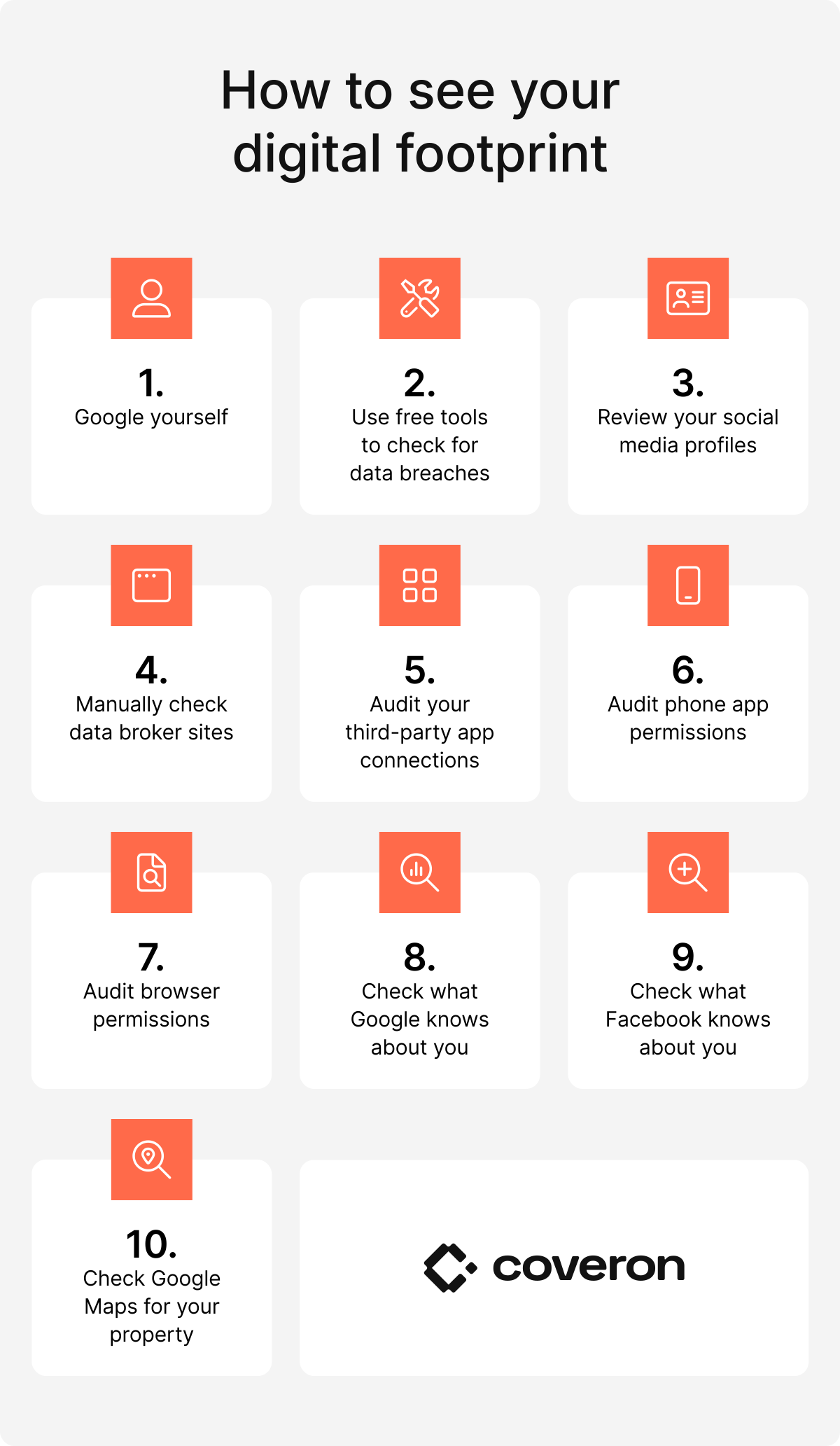
To check your digital footprint, work through these steps in order:
- Search your name on Google (in quotes) and on Bing and DuckDuckGo.
- Check your email addresses against a breach database such as Coveron's Have I Been Hacked.
- Review your social media profiles while logged out to see what's publicly visible.
- Search your name on data broker sites such as Whitepages, Spokeo, and Radaris and submit opt-out requests for any listings you find.
- Audit third-party app connections via your Google, Apple, Microsoft, and Facebook account dashboards and revoke permissions for apps you no longer use.
- Review mobile app permissions under your phone's privacy settings and restrict location, microphone, and contacts access for apps that don't need them.
- Check your browser's cookie and site-data settings, clear stored data from sites you no longer use, and block third-party tracking cookies.
- Review your activity history at Google My Activity and delete data you don't want stored.
- Review your interests at Facebook Ad Preferences and delete outdated or inaccurate data.
- Check Google Maps and submit a request to remove or blur images.
Each step is covered in detail below.
1. Google yourself
Start by searching your name exactly as it appears online.
- Put your name in quotes for exact matches (for example, “John Doe”).
- Add context like your city or workplace (for example, “John Doe professor”).
- Check images separately using Google Images to see where your photos appear.
- Combine your name with contact details to detect leaks (for example, “John Doe” email or “John Doe” phone number).
- Search within specific websites to check platform exposure (for example, site:linkedin.com “John Doe” or site:github.com “John Doe”).
- Search for your name in page content rather than titles (for example, intext:“John Doe”).
- Look for spreadsheets or presentations that may contain your data (for example, “John Doe” filetype:xlsx or “John Doe” filetype:ppt).
Setting up Google Alerts for your name or email helps you stay informed when new content appears online.
Action to take: If you find sensitive information, you can request removal through Google’s content removal form opens in a new tab. Submit the relevant URLs and explain why the content should be removed. Google may only remove the result from search listings, not from the original site, so contacting the website owner may also be necessary. After checking your results, clean up your digital presence by deleting or updating old posts, removing unused accounts, and requesting the removal of personal data where possible.
2. Use free tools to check for data breaches
Data breaches are one of the most common ways personal information gets exposed without you realizing it. When companies you’ve used are compromised, details like emails, passwords, and other sensitive information can end up in leaked databases. Checking for these exposures reveals whether parts of your digital footprint are already compromised.
PRO TIP
To check effectively, start with a free scan using reputable tools. Coveron’s Have I Been Hacked lets you enter your email to see if it’s been linked to any reported breaches. These tools typically show whether your email has appeared in known breach databases and may include what type of data was exposed.
Action to take: If a breach is detected, change the password for the affected account immediately and update any other accounts using the same or similar credentials. Enable two-factor authentication wherever possible to reduce the risk of unauthorized access, and consider using a password manager to generate and store strong, unique passwords. Keep monitoring your emails, watch for suspicious activity (such as unexpected login alerts), and update recovery emails and security questions.
3. Review your social media profiles
Social media accounts often contain the most visible part of your digital footprint. Old posts, photos, comments, and interactions can remain accessible long after they’ve stopped being relevant.
Review your profiles the way a stranger would see them:
- On Facebook, use “View as” (found on your profile menu) to see how it appears publicly.
- On Instagram and X, open your profile in a browser while logged out to see what non-followers can view (posts, photos, followers, and bio).
- On LinkedIn, use “Public profile & URL” to preview how your profile appears to others.
Check whether your accounts are public or private and whether other users can view key details like photos, geotags, and friend/follower lists.
Action to take: After reviewing your profiles, tighten visibility settings on each platform.
- On Facebook, go to “Settings,” then “Privacy checkup” to control who can see your content and limit past posts.
- On Instagram, switch to a private account via “Settings” > “Account privacy” and review Story and tagging controls.
- On X, enable “Protect your posts” by going to “Privacy and safety” > “Audience and tagging” to restrict visibility to approved followers.
- On LinkedIn, edit “Visibility” settings to manage profile access, email visibility, and whether your profile appears in search engines.
4. Manually check data broker sites
Data brokers and their databases often collect and publish detailed personal information. Unlike social media profiles, these listings are typically built from public records, marketing databases, and third-party sources.
To check for data exposure, search your name on major people-finder sites like Incogni, Whitepages, Spokeo, FastPeopleSearch, and Radaris. Try variations of your name along with your city or state. These sites typically list details such as your full address history, phone numbers, age, relatives, and sometimes employment information.
Action to take: If you find your information, use each site’s opt-out or removal process to request deletion. You’ll need to submit requests on each site individually, verify your identity, and sometimes follow up if listings reappear. If managing removals across multiple sites becomes too time-consuming, consider using a paid data removal service to streamline ongoing monitoring and removal. Combining manual checks with ongoing monitoring helps keep your personal information from circulating publicly without your knowledge.
5. Audit your third-party app connections
Third-party app connections build up quietly over time, especially when you use “Sign in with Google,” “Continue with Facebook,” or similar login options. Even after you stop using the app, those permissions often remain active.
A proper audit helps you understand which apps still have access to your accounts and whether that access is still justified.
Start by reviewing your connected apps on each major platform:
- Google: https://myaccount.google.com/permissions opens in a new tab
- Apple: https://appleid.apple.com opens in a new tab
- Microsoft: https://account.live.com/consent/Manage opens in a new tab
- Facebook: https://www.facebook.com/settings opens in a new tab (then go to "Apps and websites")
Each dashboard lists apps and services connected to your account, along with the type of data they have access to (like email, contacts, or files). When reviewing your connections, focus on apps you no longer use, services you don’t recognize, and apps requesting broader access than necessary.
Action to take: Review your browser settings and block or limit third-party cookies, then review and delete stored site data from websites you no longer use or trust. Reset or revoke unnecessary site permissions such as location, notifications, camera, and microphone access, and consider enabling strict tracking protection settings. Consider installing a reputable anti-tracking browser extension to automatically block trackers and reduce profiling across websites in real time. For example, Coveron offers a bundle with NordVPN in its Full Protection plan, which includes a next-gen antivirus that helps block malicious websites, ads, and trackers.
6. Audit phone app permissions
Mobile apps quietly collect sensitive data like your location, camera, microphone, and contacts. Over time, those permissions can stay enabled long after they’re needed, meaning apps you barely use may still be collecting data in the background.
A regular permissions audit helps you regain control over what your phone is sharing.
On Apple devices (iOS):
- Go to "Settings" > "Privacy & security," where you can review permissions for "Location services," "Camera," "Microphone," "Contacts," "Photos," and more.
- Tap each category to see which apps have access. From there, you can adjust permissions to “Never,” “Ask next time or when I share,” or “While using the app.”
- You can also review "Settings" > "Privacy & security" > "App privacy report" to see how apps have used permissions recently.
On Android devices:
- Go to "Settings" > "Privacy" > "Permission manager" (or "Settings" > "Security & privacy" > "Privacy Controls," depending on the device).
- From there, you can view which apps have access to sensitive features like location, camera, microphone, and contacts.
- You can adjust permissions to “Allow only while using,” “Ask every time,” or “Deny.”
Action to take: If an app is rarely used or unnecessary, it’s best to revoke its permissions entirely or uninstall it. Removing access stops it from collecting data in the background, even if it remains installed.
7. Audit browser permissions
Your browser controls how websites track your activity, store cookies, and access certain device features. Over time, websites may accumulate cookies, trackers, and permissions that continue to follow your activity across the web.
To review settings in major browsers, start by checking cookies and site data.
- Google Chrome: Go to "Settings" > "Privacy and security" > "Third-party cookies" to block or limit tracking cookies. Click “See all site data and permissions” to review stored data from specific websites.
- Mozilla Firefox: Go to "Settings" > "Privacy & security" > "Cookies and site data" to clear cookies or block trackers. Adjust "Enhanced tracking protection" to “Strict” for stronger privacy.
- Microsoft Edge: Check "Settings" > "Privacy, search, and services" > "Cookies" and "Site permissions" to manage tracking prevention levels and stored site data.
Action to take: Review your browser settings and block or limit third-party cookies, then review and delete stored site data from websites you no longer use or trust. Reset or revoke unnecessary site permissions such as location, notifications, camera, and microphone access, and consider enabling strict tracking protection settings. Consider installing a reputable anti-tracking browser extension to automatically block trackers and reduce profiling across websites in real time. For example, Coveron offers a bundle with NordVPN in its Gold and Platinum plans, which includes a next-gen antivirus that helps block malicious websites, ads, and trackers.
8. Check what Google knows about you
Google collects data from searches, apps, location history, YouTube, and more. You can review this data at Google My Activity, which shows a full log of your searches, watched videos, location history, and other activity. From this dashboard, you can delete individual entries, clear activity by date or product, and manage settings to limit future data collection.
Action to take: Regularly visit Google My Activity to review and delete data you don’t want stored, either individually or in bulk. Adjust your account settings to limit future collection by disabling "Web & app activity," "Timeline," and "YouTube history." Consider turning on auto-delete options to maintain control over your digital footprint without having to manually clear data all the time.
9. Check what Facebook knows about you
Review and manage data in Facebook Ad Preferences, which shows what Facebook believes you’re interested in, how it categorizes you, and which advertisers you’ve seen ads from. You can review specific interests or ad topics, as well as advertisers you interacted with.
Action to take: Regularly visit Facebook Ad Preferences to delete outdated or inaccurate interests and remove connections to advertisers. Adjust your ad settings to limit tracking and personalization. To limit future data collection, go into your privacy settings ("Accounts center" > "Your information and permissions" > "Your activity off Meta technologies") and turn off data collection from off-Facebook activity. Periodically review your ad preferences to maintain better control over how your behavior is tracked and used for ads.
10. Check Google Maps for your property
Google Maps and Street View can reveal images of your home, vehicles, or other property details that you might prefer to keep private. These images are publicly accessible and can show sensitive information such as house numbers, driveway layouts, or even parked cars.
Action to take: Search your home address on Google Maps and switch to Street View. If you find images you want removed or blurred, you can submit a Blur Street View Imagery request directly to Google. Follow the prompts to select the area to blur, submit the request, and wait for Google to process it. Periodically check your property on Maps to ensure new images or updates don’t compromise your privacy.
How to minimize your digital footprint
If you’re wondering how to delete yourself from the internet, one step is starting with your digital footprint. The goal is to limit how much data is collected and how easily it can be linked back to you. It’s also smart to understand how to find out if your info is on the dark web since exposed personal data can increase privacy and identity theft risks.
Here are some steps to tighten control over your online identity:
- Delete unused accounts. Regularly audit and permanently delete old or inactive accounts (shopping sites, forums, apps). These often still store personal data and can become targets in a breach.
- Avoid using “Sign in with Google/Facebook.” Use unique email/password combinations instead of social logins, which allow companies like Google and Meta Platforms to track activity across services.
- Use a dedicated email for sign-ups. Create a separate email address just for registrations to isolate spam and limit exposure of your primary email address.
- Use a VPN. A reputable VPN (virtual private network) masks your IP address and encrypts browsing traffic, making it harder to track your browsing activity.
- Turn off search engine tracking. Adjust privacy settings or switch to privacy-focused search engines like DuckDuckGo or Startpage.
- Disable location tagging. Turn off geotagging in social media apps and camera settings, so posts don’t reveal your exact location.
- Limit app permissions. Review and restrict permissions (location, microphone, contacts) for apps that don’t truly need them.
- Regularly clear cookies and browser data. Delete cookies, cache, and browsing history to reduce tracking and profiling by advertisers.
- Use privacy-focused browsers/extensions. Consider browsers like Brave or Mozilla Firefox with privacy add-ons that block trackers and ads.
- Be selective about what you share online. Avoid oversharing personal details (birthdate, address, travel plans) on social media or public forums since this information can be aggregated over time.
When is a paid service worth it?
Free DIY methods are a smart place to start if you want to reduce your online exposure. You can search your name, review and delete unused accounts, adjust privacy settings, and request removals from websites.
However, free methods require a lot of work — and more importantly, you can miss areas that you should be checking. A manual search won’t surface data from the dark web, scan hundreds of data broker databases simultaneously, or detect newly updated public data about yourself that appears after your one-time cleanup. A paid service may be worth considering once you’ve reached the limit of what manual methods can do or if the risks are higher in your situation.
Ideally, you should consider using a paid service if you fall into one of these categories:
- High-profile individuals and executives: Those with sensitive job titles, public roles, or high net worth who need to protect their privacy and minimize risks like targeted scams.
- Active job seekers: Individuals managing their professional reputation to ensure outdated or embarrassing information doesn’t affect career prospects.
- Privacy-conscious individuals: Those who want to significantly reduce their digital footprint by automating the removal of their data from broker sites.
- Victims of identity theft or data breaches: Those needing immediate, 24/7 monitoring and professional recovery assistance after their data has been compromised.
- People dealing with stalking, harassment, or doxing: If someone is targeting your personal information online, paid services can be valuable.
- Individuals with a highly common name: If your name appears across many records, manually separating your data from everyone else’s can be difficult and time-consuming.
- Online freelancers: Individuals who build trust online and need to ensure their personal information isn’t easily accessible to strangers.
One way to better protect yourself is to look at ways to reduce your risk and control how your personal information is handled online. Identity protection services like Coveron are designed to help monitor exposed personal information and other identity-related risks. While it isn’t a digital footprint checker, it can add protection by helping you spot threats early.
Get notified and act immediately.
30-day money-back guarantee